

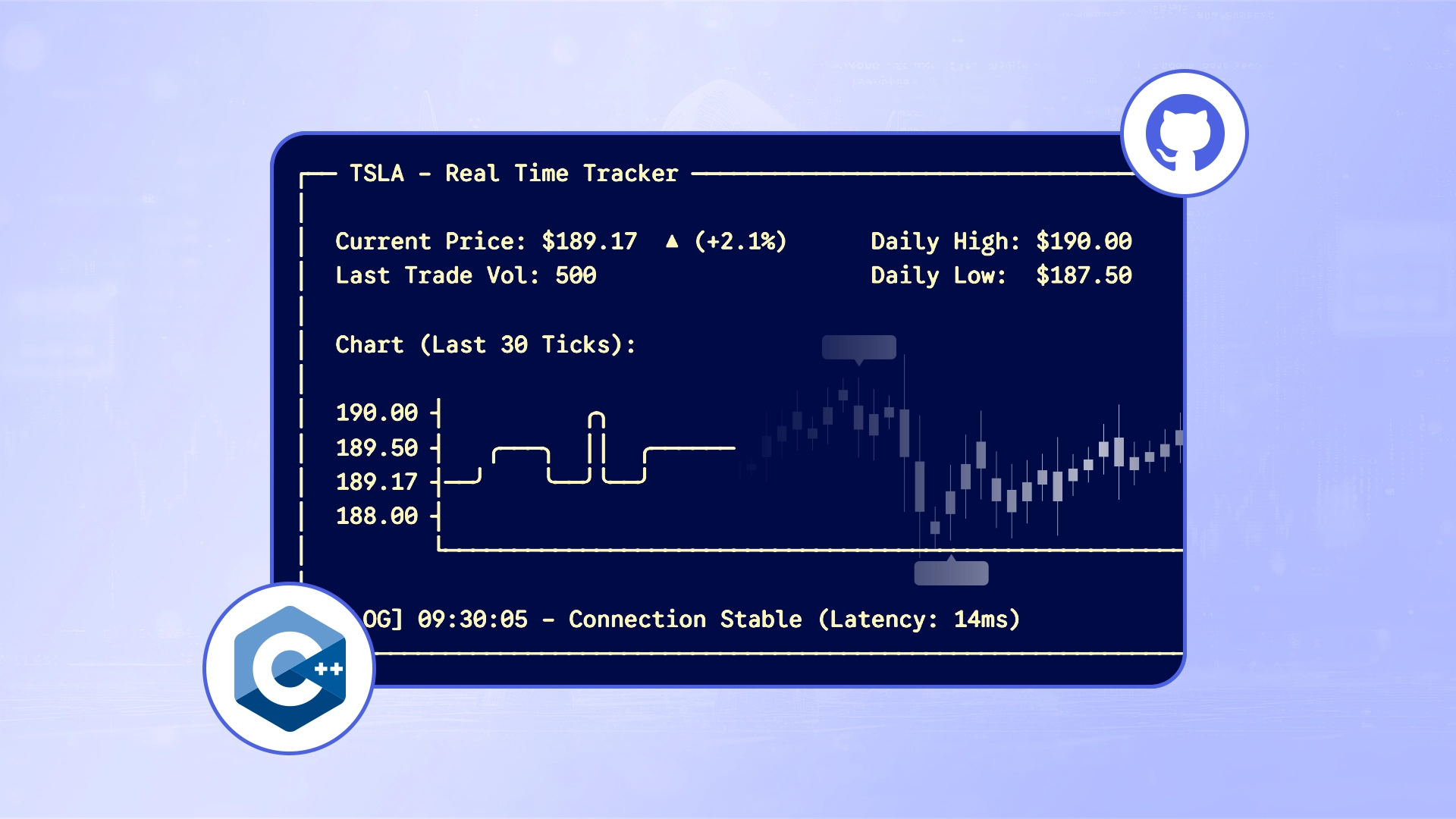
Welcome to the official TraderMade C++ SDK!
This high-performance library provides a streamlined interface for interacting with the TraderMade Forex and CFD Data API. Designed for developers and algorithmic traders who require low-latency data access, this SDK handles the complexities of HTTP requests and response parsing, letting you focus on building your trading strategies.
Key Features:
- Plug-and-Play: Simple integration with existing C++ projects.
- Automatic Parsing: All API responses are automatically converted into native JSON objects for easy access.
- Comprehensive Access: Full support for Live Rates, Historical Data, and Time-Series any many other endpoints.
1. Prerequisites
Before you begin, ensure your development environment meets the following requirements:
- C++ Compiler: A modern compiler supporting C++14 or higher (e.g., G++, Clang, MSVC).
- TraderMade API Key: You can get a free API key by signing up at the TraderMade Dashboard.
- Dependencies: This SDK requires the curl command-line tool to be installed and available in your system PATH, and it uses nlohmann/json for JSON parsing.
2. Installation
To use this SDK, you need to set up curl on your system, and then choose how you want to compile the project.
Step 1: Install System Dependencies (curl)
First, ensure you have the curl command-line tool installed. The SDK runs curl under the hood to make HTTP requests.
For Linux (Ubuntu/Debian):
sudo apt-get update
sudo apt-get install curl
For Windows: On Windows, make sure curl is installed and available in PowerShell (Windows 10/11 usually includes it by default). To make sure check if curl is present or not by following command:
curl --version
Step 2: Get the SDK
Clone the repository to your local machine:
git clone https://github.com/tradermade/cpp-sdk.git
cd cpp-sdk
Step 3: Choose Your Build Method
Now, choose ONE of the following options to handle the JSON dependency and compilation.
Option A: CMake (Recommended)
Best for: Automated dependency management and cross-platform compatibility.
Create a CMakeLists.txt in your project root and paste the code below in the file. This script will automatically download the JSON library for you.
cmake_minimum_required(VERSION 3.14)
project(TraderMadeSDK LANGUAGES CXX)

# 1. Fetch the JSON library automatically
include(FetchContent)

FetchContent_Declare(
    json
    URL https://github.com/nlohmann/json/releases/download/v3.11.3/json.tar.xz
)
FetchContent_MakeAvailable(json)

# 2. Define the SDK Library
add_library(tradermade_sdk STATIC TraderMadeSDK.cpp TraderMadeSDK.h)

target_compile_features(tradermade_sdk PUBLIC cxx_std_14)

# 3. Link JSON to the SDK
target_link_libraries(tradermade_sdk PUBLIC nlohmann_json::nlohmann_json)

target_include_directories(tradermade_sdk PUBLIC
    $<BUILD_INTERFACE:${CMAKE_CURRENT_SOURCE_DIR}>
    $<INSTALL_INTERFACE:include>
)

# 4. Build your App (main.cpp)
add_executable(app main.cpp)
target_link_libraries(app PRIVATE tradermade_sdk)
Option B: Manual Compilation
Best for: Simple, single-command builds without installing CMake.
Since you are not using a build system, you must manually download the JSON header file.
Run the command for your OS to create a folder and download the JSON header file.
PowerShell (Windows):
New-Item -ItemType Directory -Force -Name nlohmann
Invoke-WebRequest -Uri "https://github.com/nlohmann/json/releases/download/v3.11.3/json.hpp" -OutFile "nlohmann/json.hpp"
Bash (Linux/Mac):
mkdir -p nlohmann
wget -O nlohmann/json.hpp https://github.com/nlohmann/json/releases/download/v3.11.3/json.hpp
3. Setting Your Environment Variable
Security Note: It is best practice to keep your API key out of your source code. Use an Environment Variable instead.
Setting Key in PowerShell
Method 1: Current Session Only (Temporary) Use this if you just want to run the code once. The key will be lost when you close the window.
$env:TRADERMADE_API_KEY = "YOUR_ACTUAL_API_KEY_HERE"
Method 2: Permanent (User Profile) Use this to set the key permanently so you don't have to type it every time.
- Open PowerShell.
- Run the following command to edit your user environment variables:
[System.Environment]::SetEnvironmentVariable('TRADERMADE_API_KEY', 'YOUR_ACTUAL_API_KEY_HERE', 'User')
"Note: You must close and reopen PowerShell for this change to take effect."
Linux / macOS (Bash or Zsh)
Method 1: Current Session Only (Temporary)
export TRADERMADE_API_KEY="YOUR_ACTUAL_API_KEY_HERE"
Method 2: Permanent Add the export line to your shell configuration file (e.g., ~/.bashrc or ~/.zshrc).
echo 'export TRADERMADE_API_KEY="YOUR_ACTUAL_API_KEY_HERE"' >> ~/.bashrc
source ~/.bashrc
Usage Guide
1. Reference Data
Retrieve lists of available currencies, cryptocurrencies, and CFDs to know what symbols you can query.
// Get list of all available currencies
std::cout << tm.getLiveCurrencyList() << std::endl;

// Get list of cryptocurrencies
std::cout << tm.getCryptoList() << std::endl;

// Get list of available CFDs
std::cout << tm.getCfdList() << std::endl;
2. Live Market Data
Fetch real-time data for specific currency pairs.
// Fetch live data for a single pair or multiple pairs (comma separated)
json rates = tm.getLiveRates("EURUSD,USDJPY");
std::cout << rates << std::endl;
3. Time Series Data
Fetch a range of data points (OHLC) over a period.
- Intervals: daily, hourly, minute
- Formats: records, csv, split
try {
    json timeSeries = tm.getTimeSeriesData(
        "EURUSD",       // Symbol
        "2023-10-01",   // Start Date
        "2023-10-05",   // End Date
        "daily",        // Interval
        "1",            // Period (e.g., 1 day)
        "records"       // Format
    );
    std::cout << timeSeries << std::endl;
} catch (const std::exception& e) {
    std::cerr << "Time Series Error: " << e.what() << std::endl;
}
4. Tick Data
Get high-frequency tick data (Bid/Ask) for analysis.
// Fetch tick data
// Note: We use "json" format here so the SDK can parse it safely
json tickData = tm.getTickHistoricalData(
    "EURUSD",
    "2023-10-25-10:00", // Start Timestamp
    "2023-10-25-10:05", // End Timestamp
    "json"              // Format
);
std::cout << tickData << std::endl;
5. Usage Example
Save the following code as main.cpp. It demonstrates how to initialize the SDK using the environment variable you just set.
#include <iostream>
#include <cstdlib> // Required for std::getenv
#include <nlohmann/json.hpp>
#include "TraderMadeSDK.h"

using json = nlohmann::json;

int main() {
    try {
        // 1. Retrieve API Key from Environment Variable
        const char* envKey = std::getenv("TRADERMADE_API_KEY");
        if (!envKey) {
            std::cerr << "Error: TRADERMADE_API_KEY environment variable not set." << std::endl;
            return 1;
        }

        // 2. Initialize SDK
        TraderMade tm;
        tm.setRestApiKey(std::string(envKey));

        // 3. Get Live Rates
        std::cout << "Fetching Live Rates for EURUSD..." << std::endl;
        json liveData = tm.getLiveRates("EURUSD");
        std::cout << "Response: " << liveData << std::endl;

        // 4. Get Historical Data
        std::cout << "\nFetching Historical Data (2023-10-25)..." << std::endl;
        json history = tm.getHistoricalRates("2023-10-25", "GBPUSD");
        std::cout << "Response: " << history << std::endl;

    } catch (const std::exception& e) {
        std::cerr << "SDK Error: " << e.what() << std::endl;
    }

    return 0;
}
Compilation
You can compile the project using the method you chose in Step 2.
Option A: Building with CMake
mkdir build
cd build
cmake ..
cmake --build .
# Run the app
./app       # Linux/Mac
app.exe     # Windows
Option B: Manual Compilation (g++) Because you are not using CMake, you must manually tell the compiler to build both your main.cpp and the TraderMadeSDK.cpp.
g++ main.cpp TraderMadeSDK.cpp -o app -I . -std=c++14

# Run the app
./app       # Linux/Mac
app.exe     # Windows
Conclusion
The TraderMade C++ SDK streamlines the process of integrating financial market data into your high-performance applications. By performing HTTP requests via the curl command-line tool and automating JSON parsing, the SDK allows you to bypass the boilerplate network code and focus directly on your trading logic and quantitative analysis.
Whether you are building a low-latency trading bot, a backtesting engine using historical data, or a live financial dashboard, this library provides a robust, type-safe foundation for your data needs.
Resources
- GitHub Repository: Get full code and examples
- API Documentation: Official TraderMade API Docs
- Get Your Key: Sign up for an API Key