

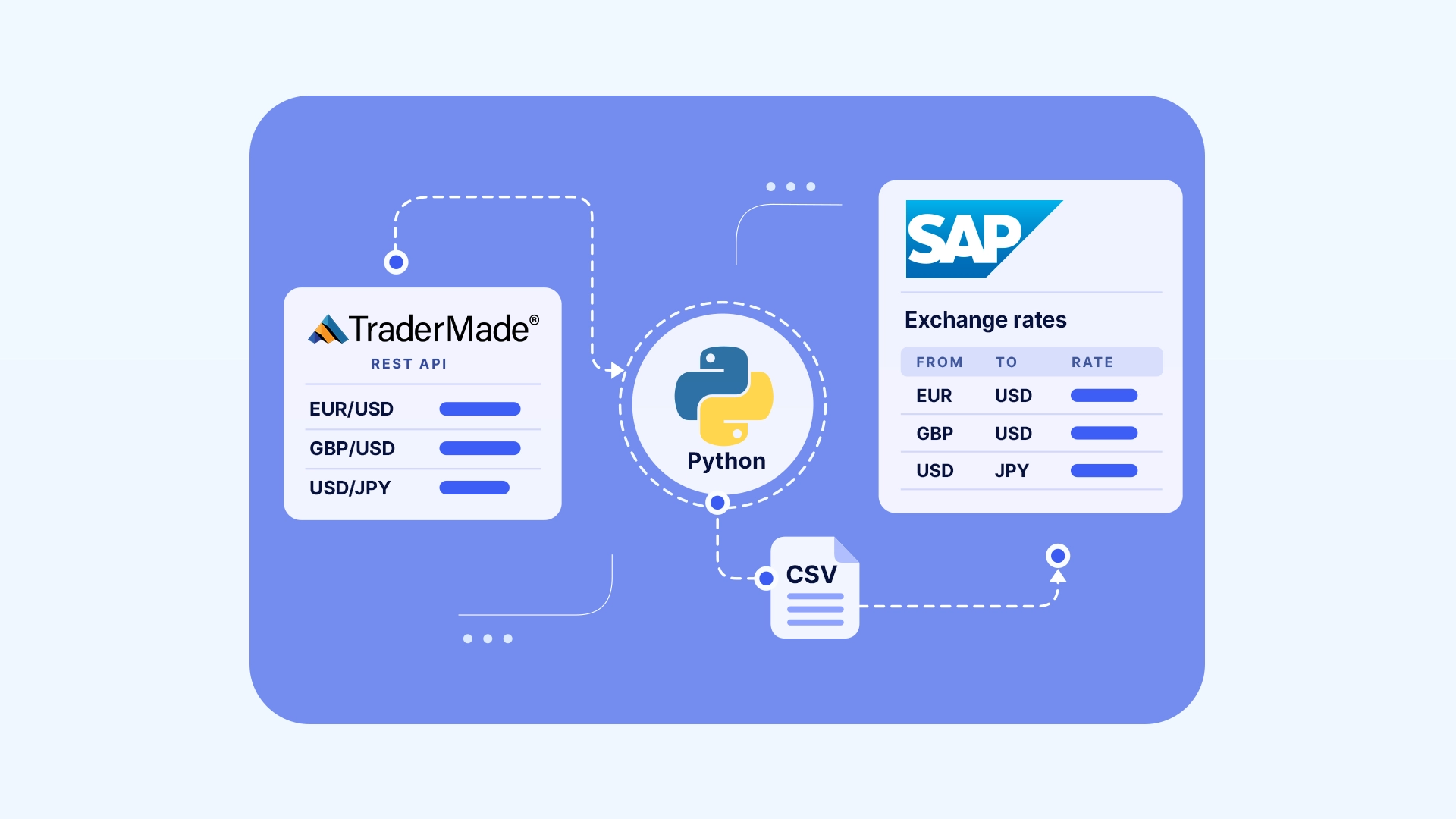
For organisations managing transactions across multiple currencies, keeping exchange rates up to date in SAP S/4HANA Cloud is an important part of financial reporting, currency conversion and foreign currency valuation.
On S/4HANA Cloud, Public Edition, you can't write to SAP's tables directly, and the spreadsheet import has to be run by hand. SAP's answer is Market Rates Management (MRM) and its Bring Your Own Rates (BYOR) option: you send rates to MRM, and S/4HANA collects them on a schedule.
In this tutorial we'll pull each day's closing rates from TraderMade's Forex API and load them into S/4HANA Cloud automatically, with one short Python script.
This is a general integration pattern, not a packaged SAP connector. SAP's app names change between releases, so we've marked them with (verify against your release).
How It Works
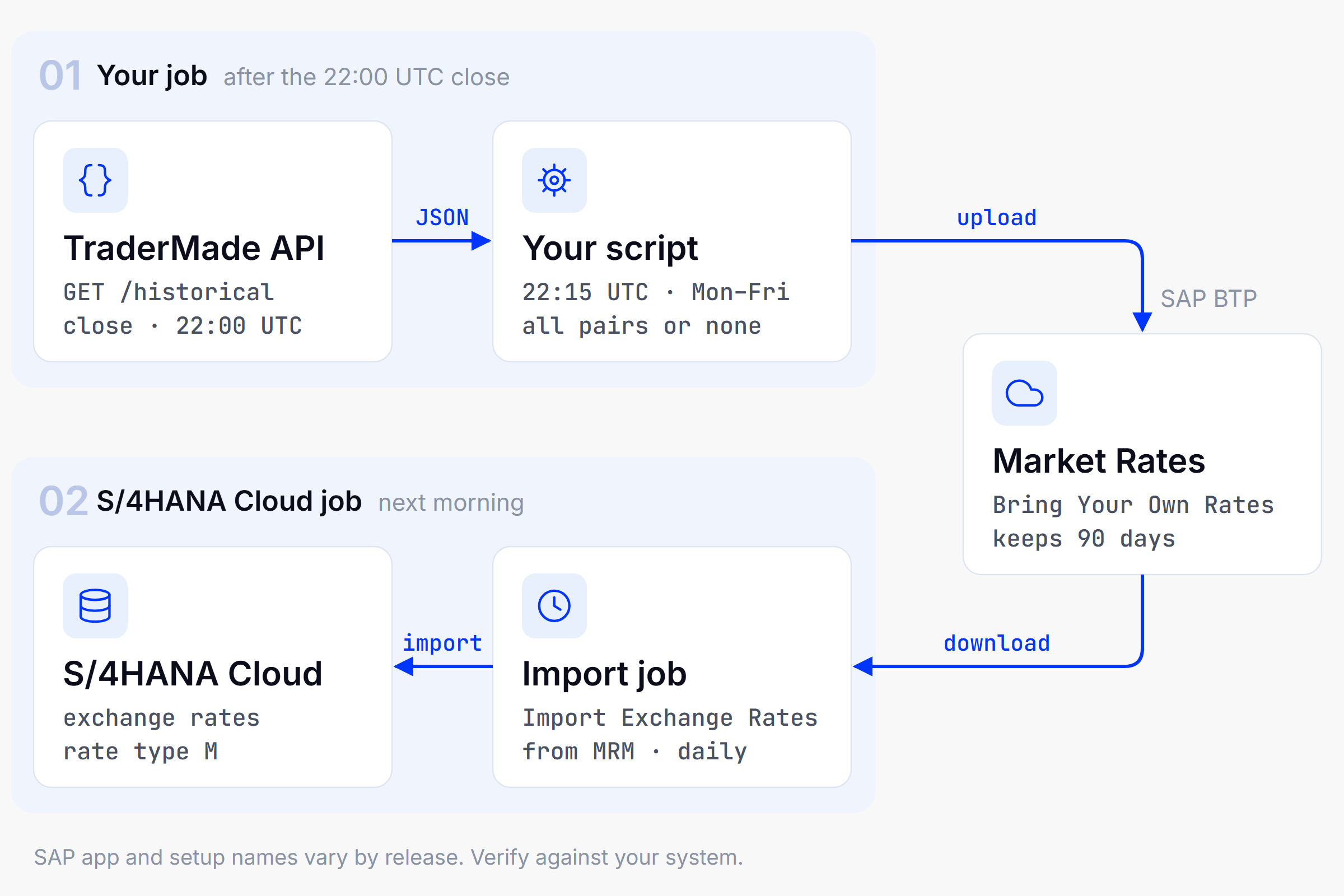
Once it's set up, two jobs run every night with nobody involved:
- Your script fetches the day's closing rates from TraderMade and uploads them to MRM.
- S/4HANA's import job collects them from MRM and updates your exchange rates.
Getting there takes three steps: a one-off SAP setup, a script, and a schedule. Follow along with the full Python script on GitHub.
What You'll Need
- SAP S/4HANA Cloud, Public Edition with MRM switched on (scope item 83C, or 1S4 on older setups).
- An MRM Bring Your Own Rates subscription. The free plan is fine for testing; a daily feed needs the paid plan.
- A TraderMade REST API key. Get one here.
- Python 3.9 or later. No extra packages.
Step 1: One-Off SAP Setup
Your SAP admin does this once.
Get four credentials for the MRM upload API: an upload URL, a token URL, a client ID and a client secret. On the SAP-managed setup they're in SAP for Me; on the customer-managed setup they're in the service key in SAP BTP. If you're given a base URL, the token URL is that URL followed by /oauth/token.
Tell S/4HANA which pairs to import. In Assign Currency Notations – Datafeed (verify against your release), add one row per currency pair with these values, which the script also uses:
| Setting | Value |
|---|---|
| Data provider | Y001 |
| Data source | BYOR |
| Currency pair | e.g. EUR to USD |
| Property | C (close), mapped to rate type M |
| Ratio | 1:1 |
The ratio is 1:1 because TraderMade quotes every pair per 1 unit of the base currency (EURUSD 1.13314 means 1 EUR = 1.13314 USD). S/4HANA converts to its own ratios, such as "per 100 JPY", by itself.
On the older customer-managed setup, your admin also creates a communication system and an arrangement for scenario SAP_COM_0203 (verify against your release).
Step 2: Run the Script
Get the full script from GitHub. It's a single file, s4hana_cloud_rates.py, that uses only Python's standard library, so there's nothing to install. Further down, we walk through the parts worth understanding.
Then save these as environment variables on the machine that runs it:
MRM_UPLOAD_URL       MRM_TOKEN_URL       MRM_CLIENT_ID
MRM_CLIENT_SECRET    TRADERMADE_API_KEY
(If your credentials came from SAP Cloud Identity Services, also set MRM_RESOURCE.)
The script calls TraderMade's /historical endpoint for the day that has just closed. Here's what comes back for month-end, 30 September 2026 (trimmed to two pairs):
{
  "date": "2026-09-30",
  "endpoint": "historical",
  "quotes": [
    {"base_currency": "EUR", "close": 1.13314, "high": 1.13804, "low": 1.13222, "open": 1.13442, "quote_currency": "USD"},
    {"base_currency": "USD", "close": 157.3465, "high": 157.53599, "low": 156.3775, "open": 157.28101, "quote_currency": "JPY"}
  ],
  "request_time": "Thu, 01 Oct 2026 16:04:00 GMT"
}
The close is the mid price at 22:00 UTC. The script turns each quote into an MRM record and uploads them all in one go.
Here are the parts of the script worth understanding.
The settings
Everything you might change sits at the top of the file:
PAIRS = ["EURUSD", "GBPUSD", "USDJPY", "USDTRY", "USDIDR"]

PROVIDER_CODE = "Y001"
DATA_SOURCE = "BYOR"
PROPERTY = "C"
PAIRS is your currency list. The other three must match the values from Step 1.
last_closed_day(): which day to load
def last_closed_day():
    now = datetime.now(timezone.utc)
    if now.hour >= 22:
        return now.date()
    return now.date() - timedelta(days=1)
TraderMade's daily close is at 22:00 UTC. Before then, today's bar is still forming, so the script loads yesterday's instead.
build_records(): from TraderMade to SAP's format
This turns each TraderMade quote into the record MRM expects:
records.append({
    "providerCode": PROVIDER_CODE,
    "marketDataSource": DATA_SOURCE,
    "marketDataCategory": "01",  # 01 = exchange rates
    "key1": base,                # e.g. EUR
    "key2": quote_cur,           # e.g. USD
    "marketDataProperty": PROPERTY,
    "effectiveDate": day.isoformat(),
    "effectiveTime": CLOSE_TIME,  # "22:00:00" GMT
    "marketDataValue": float(rate),
    ...
})
It also checks the whole set before anything is sent. If a pair is missing, duplicated or has a bad rate, it stops rather than uploading half a set.
get_token() and upload_rates(): sending to SAP
MRM uses OAuth, so the script makes two calls. get_token() swaps your client ID and secret for a short-lived access token. upload_rates() then posts the records with that token:
headers={"Authorization": f"Bearer {token}", "Content-Type": "application/json"}
SAP answers HTTP 201 when the upload succeeds.
main(): running it all safely
main() ties the steps together and handles the awkward cases:
- Weekends: TraderMade returns Friday's rates for a Saturday, so the script sees the dates don't match and uploads nothing.
- Errors from SAP: it prints SAP's reason and stops. Retrying won't fix bad data.
- SAP briefly unavailable: it tries again up to three times before giving up.
To add a currency, add the pair to PAIRS and add a row for it in Step 1. Both are needed.
Step 3: Schedule It
The script: run it after 22:00 UTC, Monday to Friday. On Linux, with the clock on UTC:
15 22 * * 1-5 cd /opt/fx-rates && /usr/bin/python3 s4hana_cloud_rates.py >> rates.log 2>&1
The S/4HANA import: in Schedule Treasury Back Office Jobs, create a daily job from the template Import Exchange Rates from MRM (verify against your release).
One thing to watch: S/4HANA schedules in local time, which shifts with daylight saving, but the 22:00 UTC close doesn't. Pick a time that's after the upload all year round, such as 02:00 for Central Europe, running Tuesday to Saturday.
Check It Worked
The script prints HTTP 201 when the upload succeeds. After the import has run, open Currency Exchange Rates and look up EUR to USD, rate type M, for 30 September 2026. You should see 1.13314.
If something's off:
| Problem | Check this |
|---|---|
| 401 error | Client ID, secret, and that the token URL ends in /oauth/token |
| Upload works, but nothing appears in S/4HANA | Data source is BYOR, and the pair, provider and property match Step 1 |
| Rates out by 100 times | The datafeed ratio isn't 1:1 |
| An old or odd rate keeps coming back | A test record with a future date was uploaded. Never test with future dates |
| Uploads fail late in the month | The free plan's monthly limit is used up |
Where This Integration Fits in Enterprise Finance
Exchange rates feed financial reporting, foreign currency valuation, treasury operations and reconciliation. For a group with subsidiaries in Europe, the US and Asia, all reporting in one currency, using the same rates everywhere matters most at month-end.
This setup gives finance and IT teams a repeatable, hands-off way to load those rates from a single source. And the same TraderMade API can supply the same rates to reporting systems, treasury applications and data warehouses, so every system works from the same numbers.
Next Steps
You now have a script that loads TraderMade's daily closing rates into SAP S/4HANA Cloud every night. Add more pairs to PAIRS as you need them. If your treasury team uses a fixing time instead of the daily close, TraderMade's minute-level historical data covers that too.
For more information, explore the TraderMade REST API documentation or contact our team to discuss exchange rate data requirements for your SAP environment.